Tune Into Technology: iPads
It doesn't matter to me if you like Mac or PC. I use both, but own all Mac stuff...it just works best for me. That being said, I don't discriminate those that are pro PC, Android, or VCR. But when it comes to the classroom and using a digital tool to enhance learning potential in students and teachers the iPad is second to none.
It should be noted I'm excluding laptops. Those are completely different animals and need a post for there own. This is really just about the best mobile device in the school (IMO).
I've been using an iPad for just over two years and my immediate reaction after using it and realizing the educational value was disappointment. Why disappointment? Well, I know at least four of my prior students that would have been tremendously successful using it with reading, writing, math, and social skills. And there is nothing more aggravating than hindsight.
For speed, accuracy, student engagement, learning styles, integration, and anything else that will stick to the wall--the iPad is a game changer (sorry Surface). The types of activities and lessons I can do with a classroom of 25 kids and a single iPad is pretty cool. It's even better when they each have their own, but budgets are a whole different story.
Public Service Announcement:
Cats like iPads.
So what I figured I'd do was list a few apps (and such) that I use in the my class and around school. Some of these are definitely outside the box (but doesn't teaching need to be that way?).
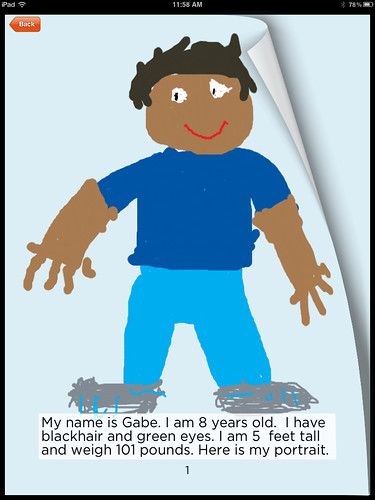
2. Scribble Press. I got this free, now it is about 3 bucks, which really isn't bad considering you can write, draw, create, and publish books. Then you can upload them to your email or their website and save it as a PDF. There is also an option to print the books out (or you could just do that yourself). I did this year with a couple of my fifth graders this year.
They wrote stories, edited them, illustrated, and then we Skyped with the early childhood school and my students read books to the kids. It was a beautiful thing. Check out this app...mind bottling.
3. Coach's Eye. This app allows you to edit video immediately by adding diagrams, lines, pausing video, speaking over it, you name it---except it has been used predominantly for sports. We found another alternative for it. Social Awareness/Social Situations. Myself and the social worker have taken video of specific areas in the school and the students diagram exactly what is happening.
We're basically asking students to break down video (like athletes) and try to recognize what is happening. The kids study this like crazy and then discuss it with teachers and they get to do all the diagramming too. I love having students recognize areas in class, the lunchroom, or recess that could be difficult (and why). Definitely check this out.
4. One of the simplest features is the video/photo. I know it might sound silly, but having the ability to immediately play back what you've done or said is powerful. We've had students film themselves when preparing for speeches so they could work on speed, volume, and clarity. No More Robot Speech Talk (said like a robot). I still think the power of video is underrated in education and this is just another way to utilize it.
5. Skitch. This bad boy is free. Anytime you can teach students how to annotate articles, images, and more is a win for the everyone. Have them take a photo of an article then highlight vocabulary, main idea, the 5 W's, and more. Others have integrated this app into math for area and perimeter too. There is a lot you can do with this.
Also, the fact that Skitch is part of Evernote doesn't hurt anything. It just makes the connection more seamless and easier for teachers to understand. Wait...you do know about Evernote right?
6. FlipBoard. My FAVORITE! Oh this, it's just an ever expanding digital magazine that is constantly updating itself with news from around the world. Oh, and you can hook up any RSS feed, Facebook, Twitter, or WhateverAccount you have and it places it in easy to see and use magazine form.
It pulls in all your feeds and organizes them.
Plus it shows smaller sections and titles of articles/etc.
Here is a little secret I have about Flipboard...this is the place where I find most of my free apps. Go to the search bar and type in #tcea, #edapp, #ipadapp you can save these as individual magazines. Most of these hashtags are used for all things app-related included a lot of limited time freebies. TCEA sends out at least 2 free app a day. Some great, some good, some blah...but all free. Also add in Appshopper.com and subscribe to this too.
This is one of the best Professional Development tools out there....besides all of you, my blogging friends!
7. Action Movie. This app is just fun as heck (and free) The kids love it. Here is a post I did on it earlier. Make your own quick movie, add in an effect, and feel like a movie star.
8. Roxie's a-MAZE-ing Adventure. This is one of my oldies (in app terms) and it was one of the original apps I first bought. This is a fun Where's Waldo type-of-app where students must travel through level/maps finding puzzle pieces, letters, and more. But it is a little tough because kids have to follow traffic rules since you move around by card, foot, bike, and more.
This is really good for motor skill activities because students have to keep their fingers on the figure as they move from place to place. This is really a good partner game. I've seen kids get frustrated with it (which is fine), but adding in a partner can alleviate some of the aggravation.
9. Photon and Rover. These apps convert FLASH media to make them viewable on your iPad. Rover is free. It is average because (and I swear I'm not making this) it only lets certain educational sites work through it. It filters out a lot of stuff, which I understand but can be kind of aggravating.
Photon costs around five bucks but it has no filters and works really fast. I've thoroughly enjoyed using this one and it works great with a lot educational sites that use games with Flash.
Not an App, just an Idea: LAYERING
One of my favorite aspects of the iPad is LAYERING. What is layering? That is when you start with one app, create something, export it (video, image, drawing, audio), then you open up another app to add to it. This process can be completed quite a few times and only ends when the users says so.
An example would be using Action Movie to make a video clip, then exporting it to my camera roll. From there I would import this clip into iMovie and add it to my film.
This is a simple layering technique that adds to the over quality of the work. Plus, this is great for Project Based Learning (my favorite). This takes practice and isn't something that students immediately think of, but once they are shown how it can work the possibilities are endless. Layering is probably a post all to its own, so I'll throw that on the back burner.
DOGS like iPads too.
I think that will about do it for this post.
I've rambled on a little longer than I planned.